
Why Is My Laptop Running Slow? 7 Common Causes Explained
You open your laptop, click on Chrome, and wait. And wait. Then it finally loads only to freeze again when you open a second tab. You’ve restarted it three times this week. Nothing’s changed.
Here’s the thing: a slow laptop almost always has a specific reason behind it. It’s rarely just “old age.” We’ve seen laptops from 2017 that run faster than some from 2022 because the right issue got fixed.
At WeFixIt & WePrintIt, we’re a laptop repair shop in Grande Prairie that deals with slow, freezing, and crashing laptops every single day. What you’re reading below isn’t pulled from a tech manual, it’s based on what we actually diagnose and fix, week after week. Let’s get into it.
What Actually Makes a Laptop Slow?
Before we list the causes, here’s something most guides skip: your laptop slows down because something is working harder than it should. Either there’s not enough memory to handle what you’re running, the hardware is struggling, or something is consuming resources without your knowledge. The goal is to find what and that usually takes about 10 minutes if you know where to look.
1. Startup Programs Are Silently Eating Your RAM
What’s happening? Every time your laptop boots, a lineup of apps starts running in the background Spotify, OneDrive, Discord, your printer software, antivirus, and more. You didn’t open any of them. They just start.
How to check on Windows: Press Ctrl + Shift + Esc → go to the Startup tab in Task Manager. Most people are surprised there are easily 15–25 programs set to launch automatically.
Each one takes a bite out of your RAM and CPU from the moment you log in. By the time you open your browser, your laptop is already working at 60–70% capacity.
What to do: Right-click anything you don’t immediately need at startup and hit Disable. Spotify, Steam, Teams, Zoom none of these need to run the second your laptop turns on. You can still open them manually.
This is one of the fastest free fixes out there. It takes 5 minutes. Most people notice the difference on the very next boot.
2. Your RAM Is Too Low for What You're Doing
What is RAM, and why does it matter here?
RAM is your laptop’s working space the space it uses to keep active programs running. When that space fills up, your laptop borrows space from your storage drive instead. Storage is 10–50x slower than RAM. That’s when everything starts feeling like it’s moving through mud.
A few years ago, 4GB of RAM was standard in budget laptops. Right now, Google Chrome alone can consume 1.5–2GB with just a handful of tabs open. If you’re running Chrome, a Word doc, and Teams at the same time on 4GB of RAM, your laptop is overwhelmed.
How to check: Open Task Manager → Performance tab → Memory. If you’re sitting at 80–90% usage doing everyday tasks, RAM is your bottleneck.
What fixes it: A RAM upgrade. On most Windows laptops, going from 4GB to 8GB or 8GB to 16GB makes an immediately noticeable difference. It’s one of the most affordable laptop fixes we do and it’s a same-day job at our Grande Prairie shop.
Mac users: newer MacBooks (M1, M2, M3) have RAM soldered to the chip, so it can’t be upgraded. If yours is already maxed out on RAM at purchase, the fix is different, usually software optimization or knowing what not to run simultaneously.
3. Storage Drive Is Full or It's the Wrong Type
How full is too full?
Windows needs free space on your drive to create temporary files, run updates, and do basic operations. Once you’re past 85–90% full, performance noticeably degrades. A lot of people don’t check this until things are already bad.
Open File Explorer → right-click your C: drive → Properties. If you’ve got less than 10–15GB free, that’s a problem.
But here’s the bigger issue most guides miss: If your laptop still has an old spinning hard drive (HDD) instead of a solid-state drive (SSD), that’s likely the main reason it’s slow regardless of how much space is free. HDDs are mechanical. They have moving parts. They’re slow to read and write data, they degrade over time, and they’re genuinely not built for how we use laptops today.
Replacing an HDD with an SSD is probably the single most impactful hardware upgrade you can do on an older laptop. Boot times drop from 60–90 seconds to under 15. Programs open faster. The whole experience changes.
We do this swap regularly at our laptop repair shop in Grande Prairie most people can’t believe it’s the same machine afterward.
4. Overheating Is Throttling Your Processor
What is thermal throttling?
Your processor monitors its own temperature constantly. When it gets too hot, it deliberately slows itself down to avoid permanent damage. This is called thermal throttling. Your laptop literally handicaps itself to survive.
The main cause? Dust.
Over time usually 1–2 years of regular use dust packs into the vents and heat sink inside your laptop. The fan spins, but the hot air can’t escape properly. Temperatures climb. The processor throttles. Your laptop slows down.
How do you know this is your issue?
It runs fine for the first 15–20 minutes, then gets noticeably slower. The bottom of the laptop is very hot to touch. The fan is loud and running constantly. Performance improves again after the laptop sits off for a while.
What fixes it: Internal cleaning blowing out the dust, reapplying thermal paste on the CPU. This is not a DIY job unless you’re comfortable disassembling a laptop. One wrong move can disconnect a ribbon cable or crack a component.
We handle internal cleanings regularly. It’s quick, it’s inexpensive, and it often makes a laptop feel like it came back to life.
5. Malware Running in the Background
Does a virus actually slow a laptop down?
Yes and it can be subtle. Some malware runs completely silently. You won’t see a pop-up or a warning. It just sits in the background consuming CPU cycles, sometimes mining cryptocurrency, sometimes sending data, sometimes waiting.
Signs this might be your issue: Your laptop is slow even when you have nothing open. The CPU usage in Task Manager is high but you can’t identify what’s causing it. Your browser redirects occasionally or shows ads on sites that shouldn’t have them. The laptop gets hot for no obvious reason.
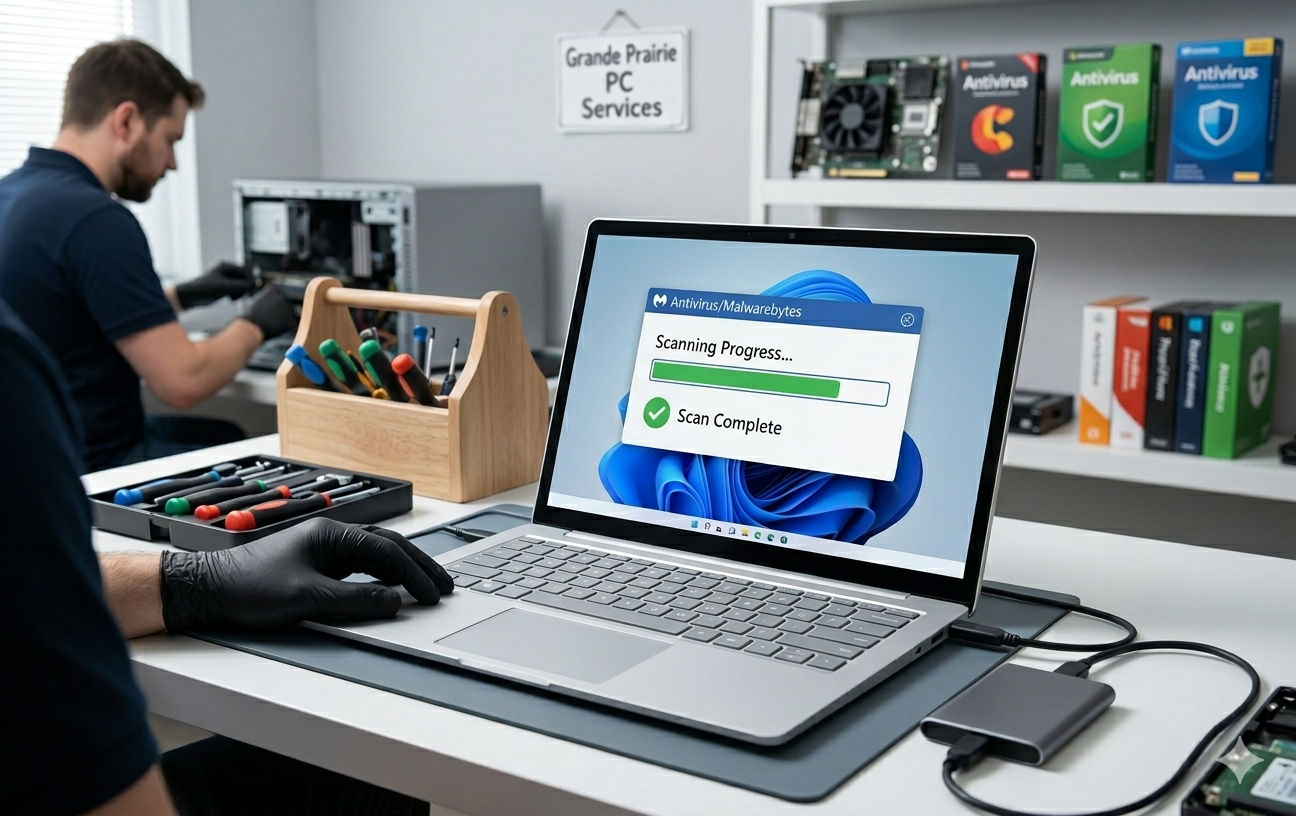
What to do: Download Malwarebytes (the free version is fine for a one-time scan) and run a full scan. It catches things that Windows Defender misses.
If the scan finds something serious, especially rootkits or deep system infections don’t try to manually remove them. Bring it in. Improper malware removal can corrupt system files and make things worse. We do full malware removal with diagnostics to make sure nothing is left behind and your files stay intact.
6. The Operating System Has Issues
How does Windows cause slowdowns?
A few ways. Driver conflicts especially after updates can cause background processes to spike. A corrupted Windows install can cause random slowdowns and crashes. And sometimes a major OS update pushes hardware requirements that your laptop struggles to meet.
Windows 11 is a real example of this. Microsoft set minimum requirements, but a lot of laptops that “pass” the requirements still struggle because they’re right at the edge 4GB RAM, older processors, slow storage. If you upgraded to Windows 11 and things slowed down shortly after, that’s likely why.
What can you do: Check your drivers, especially your graphics and chipset drivers. Outdated GPU drivers in particular can cause slowdowns and visual stuttering that people mistake for general performance issues.
If updates aren’t the problem and your OS has been slow for a long time despite everything else checking out, a clean Windows reinstall is often the move. It sounds drastic, but it genuinely works. Back your files up first, obviously. We do clean installs and data backups as a combined service if you’d rather not risk losing anything.
7. The Hardware Is Starting to Fail
When is it not a software problem at all?
Sometimes. A failing hard drive is one of the more serious causes of slow performance and it’s one people often miss because it comes on gradually.
Early signs of a failing HDD: files take longer to open than they used to. You hear clicking or grinding from the laptop (that’s the read/write head struggling). Copy operations freeze or throw errors. The laptop sometimes hangs at startup for no clear reason.
Failing RAM is another one. Bad RAM causes random slowdowns, unexpected crashes, and sometimes the blue screen of death. It’s less common but worth checking if nothing else explains what’s happening.
A degraded laptop battery can also affect performance. When the battery can no longer hold a proper charge, some laptops reduce CPU performance to compensate especially when unplugged.
What to do: Don’t ignore these signs and hope they go away. Hardware failures get worse, not better. And a failing hard drive that isn’t caught in time can mean losing everything on it.
We run full hardware diagnostics, drive health checks, RAM tests, battery condition reports as part of our free diagnosis at the shop. You’ll know exactly what’s failing and what it’ll cost to fix before you commit to anything.
What Should You Actually Do Next?
Try the free stuff first: disable startup programs, clear some storage space, run a malware scan. Those three things alone fix a surprising number of slow laptop complaints.
If none of that moves the needle, the issue is almost certainly hardware RAM, storage drive, overheating, or something starting to fail. At that point, guessing gets risky. Wrong diagnosis, wrong fix, wasted money.
Come into WeFixIt & WePrintIt in Grande Prairie. Diagnosis is free. You don’t pay a cent unless we find something and you agree to the fix. We work on all major brands Dell, HP, Lenovo, ASUS, Acer, MacBook and most laptop repairs are done the same day.
No appointment needed. Walk in anytime.
Frequently Asked Questions
Why is my laptop slow right after a restart?
Your startup programs are the most likely cause. A restart clears memory, but if 15–20 apps reload the second Windows boots, your RAM fills up before you even open your browser. Go to Task Manager → Startup and disable what you don’t need immediately.
Can a slow laptop be fixed, or does it need to be replaced?
Most slow laptops can be fixed. Adding RAM, swapping to an SSD, removing malware, or cleaning out dust handles the majority of cases we see. We’d only recommend replacement if multiple hardware components are failing at once or the repair cost genuinely doesn’t make sense against the laptop’s value and we’ll tell you that honestly.
How much does it cost to fix a slow laptop in Grande Prairie?
Depends on the cause. An internal cleaning is inexpensive. A RAM upgrade or SSD replacement typically runs between $80–$200 depending on specs and brand. Diagnosis at WeFixIt & WePrintIt is always free, so you know the cost before anything gets touched.
Will doing a factory reset fix a slow laptop?
Sometimes. If the cause is software bloat, a bad Windows install, or deeply embedded malware, yes a reset helps. But it does nothing for hardware problems. If your drive is failing or RAM is insufficient, a reset won’t change that. And you’ll lose your files if you’re not backed up first.
How do I know if my laptop has a virus making it slow?
Open Task Manager and look at the CPU column when your laptop isn’t doing much. If something is consuming 30–70% CPU and you don’t recognize what it is, that’s a red flag. Run a Malwarebytes scan. If it finds something it can’t fully remove, or if the slowdown persists after removal, bring it in for a deeper clean.
How often should I get my laptop serviced professionally?
Every 12–18 months is a reasonable standard if you use it daily. More often if you’re in a dusty environment or use it in workshops, kitchens, or similar spaces. Regular cleaning prevents overheating issues that silently degrade performance over time and it’s one of the cheapest things you can do to extend your laptop’s life.

Grande Prairie:
Unit 104 10006 101 Ave Grande Prairie Alberta T8V 0Y1
Phone: +1(780) 538-4555
Store Timings:
Mon-Fri 10am – 6pm
Sat 11am – 5pm
Dawson Creek:
10222 10 St, Dawson Creek, BC V1G 3T4, Canada
Phone: +1(778) 691-9171
Store Timings:
Mon-Fri 10am-5pm
Sat 12pm – 5pm
Fort St John:
8111,100 Ave Unit 202C, Fort St John, BC V1J1W4, Canada
Phone: +1(250) 782-0090
Store Timings:
Mon-Fri 10am-5pm
Sat 12pm – 5pm