
Back to School Tech: How to Get Your Kid's Laptop or Tablet Ready Without Buying New
Back to school season is stressful enough between new supplies, schedules, and fees. The last thing any parent wants is to drop $600–$1,200 on a new laptop when the old one is sitting right there. The good news? Most kids’ laptops and tablets don’t need to be replaced. They need to be fixed, cleaned up, and properly set up.
This guide covers exactly what to check, what to fix yourself, and when it makes sense to bring it to a professional for computer repairing before the school year kicks off.

Is Your Kid's Laptop Actually Broken Or Just Neglected?
Before anything else ask yourself this. Is the laptop broken, or has it just been ignored for two years?
Most slow, struggling student laptops have the same problems: too much junk software, no updates, a dying battery, or a cracked screen. None of those things mean “buy a new one.” They mean “fix this one.” Here’s a quick reality check. If your kid’s laptop:
- Takes more than 2 minutes to boot up
- Freezes during Google Meet or Zoom
- Has a cracked screen but still powers on
- Dies in under 2 hours off charger
- Won’t connect to Wi-Fi reliably
…then it doesn’t need replacing. It needs pc repair or a simple upgrade. Let’s go through each issue.
Step 1: Start With a Full Backup Before You Do Anything
What is it?
A backup is a copy of all the files on the device documents, photos, assignments saved somewhere else.
Why does it matter?
Because when you start deleting junk or doing any kind of repair work, you can accidentally lose things. A Grade 11 student’s biology project shouldn’t disappear because you cleared the wrong folder.
How to do it: Plug in an external hard drive or USB stick and copy the Documents, Desktop, and Downloads folders. Or use Google Drive / iCloud if you want a cloud backup. This takes 10–30 minutes and saves a lot of grief later.
Step 2: Clear Out the Junk Seriously, All of It
A lot of kids’ laptops are loaded with games, old apps, browser toolbars, and startup programs that run silently in the background. This is one of the biggest reasons a laptop feels slow.
On Windows: Go to Settings → Apps → look through the list and uninstall anything that hasn’t been used in months. Then open Task Manager (Ctrl + Shift + Esc), click the Startup tab, and disable anything that doesn’t need to run at boot. You’ll notice a faster startup time right away.
On Mac: Go to System Settings → General → Login Items and remove anything unnecessary. Then check Applications and delete old software.
On a tablet (iPad or Android): Go through your apps and delete the ones your kid hasn’t opened in months. Old games especially eat storage and sometimes run background processes.
A cluttered device is a slow device. This step alone can make a 4-year-old laptop feel noticeably faster and it costs nothing.
Step 3: Run a Malware Scan
What is malware?
It’s unwanted software that gets onto a device through shady downloads, sketchy game sites, or email links. Kids click things. It happens.
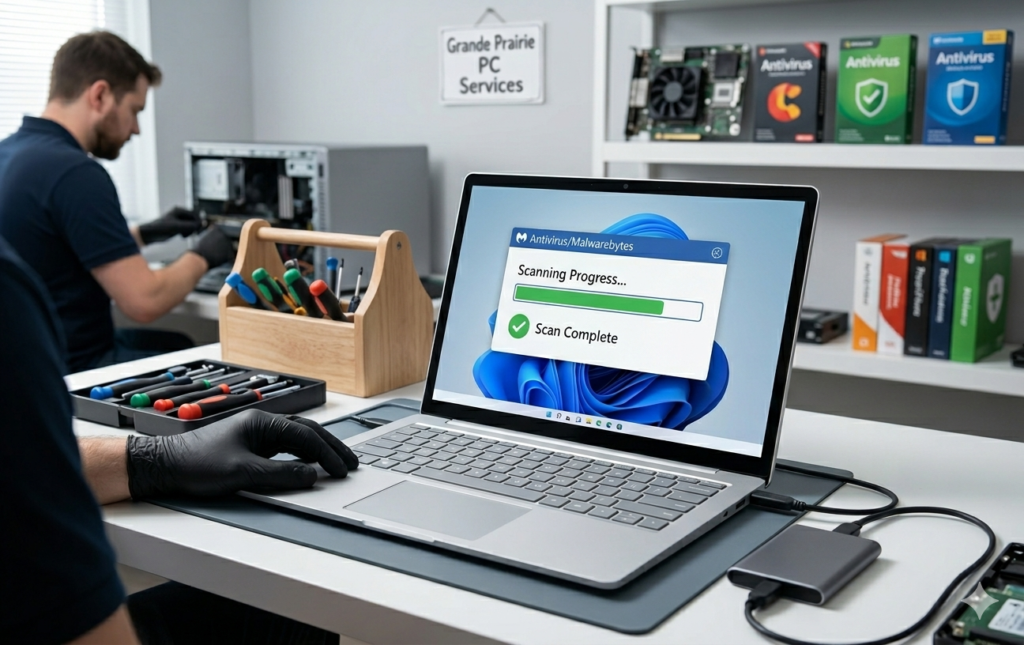
Malware running in the background can eat CPU power and RAM without you ever seeing it. Some malware only shows up as “why is this laptop so hot and slow?” On Windows, run Windows Defender (Settings → Privacy & Security → Windows Security → Virus & Threat Protection) and do a full scan. You can also download Malwarebytes — the free version works well for a one-time cleanup.
If the scan finds something and the laptop still feels sluggish afterward, that’s a sign the infection may have done some deeper damage. That’s a good time to bring it in for professional computer tech services in Grande Prairie sometimes a clean reinstall of Windows is the fastest fix.
Step 4: Update Everything
This one gets skipped constantly. Parents and kids both click “Remind me later” on Windows updates for months until the laptop is three major updates behind.
Outdated software causes compatibility issues, security gaps, and performance slowdowns. Before school starts:
- Update Windows or macOS fully
- Update the browser (Chrome, Firefox, Safari, Edge)
- Update any school-specific apps like Microsoft 365 or Google Chrome
- Check for driver updates, especially for Wi-Fi and graphics
- On Windows: Settings → Windows Update → Check for Updates. Let it run, restart when asked, and repeat until it says “You’re up to date.”
This is free, takes an hour, and fixes a surprising number of problems.
Step 5: Check the Battery
Here’s a question most people don’t think to ask: how old is the battery, and how much charge does it actually hold?
Laptop batteries degrade over time. A 3-year-old laptop might show “80% battery” but only last 90 minutes. That’s a real problem in a school setting where your kid can’t always find an outlet.
On Windows, you can run a battery report. Open Command Prompt as administrator and type: powercfg /batteryreport it generates a detailed file showing battery health. If the “Design Capacity” vs. “Full Charge Capacity” shows a big gap, the battery has degraded significantly.
A battery replacement is one of the most cost-effective repairs you can make. It’s far cheaper than a new laptop and gives the device another 2–3 years of school use. At WeFixItWePrintIt in Grande Prairie, battery replacement is a common, affordable fix and it’s one of the things we see most often right before school starts.
Step 6: Fix the Screen (Yes, Even a Cracked One)
A cracked laptop or tablet screen is annoying, but it doesn’t mean the device is done. Screen replacements are one of the most routine repairs in computer repair Grande Prairie AB and laptop fix Grande Prairie work.
Whether it’s a cracked iPad screen, a broken laptop display with lines running through it, or a hinge that’s snapped these are all fixable. The cost of a screen replacement is almost always less than a new device, especially if the rest of the hardware is solid.
A tablet with a broken screen and a working processor, battery, and storage is worth repairing. Don’t throw it out.
Step 7: Consider a RAM or SSD Upgrade (This One Is a Game-Changer)
If a laptop has 4GB of RAM, it will struggle. Modern browsers with multiple tabs, video calls, and school apps together can easily use 6–8GB. A laptop with 4GB of RAM hitting its limit will slow to a crawl.
Upgrading RAM from 4GB to 8GB or 8GB to 16GB can make a laptop feel like a completely different machine. Not all laptops support RAM upgrades (some have it soldered in), but many do especially older HP, Dell, and Lenovo models that are common in student households.
Similarly, if the laptop still has an old spinning hard drive (HDD) instead of a solid-state drive (SSD), swapping it out is one of the most impactful upgrades possible. Boot times go from 2–3 minutes to under 30 seconds. Everything loads faster.
These upgrades typically cost $50–$150 in parts, and professional installation at a pc fix Grande Prairie shop adds labor on top of that but it’s still a fraction of a new laptop.
Step 8: Set Up Parental Controls and School Accounts Properly
This is the step most blogs skip entirely and it’s actually important for parents of younger kids (Grade 1–8 especially).
Before handing the laptop back to your child for school:
- Create a separate user account for schoolwork (keeps games and personal stuff separate)
- Set up screen time limits if your kid is prone to distraction
- Enable Google Family Link or Microsoft Family Safety for oversight
- Make sure the school email and accounts are set up and working before Day 1
- Check that Google Classroom, Teams, or whatever platform the school uses is installed and logged in
Day 1 of school is not the time to discover that nobody knows the password to the school account.
When Should You Just Bring It In?
Do it yourself works for software issues clearing junk, running updates, scanning for malware. But some problems genuinely need a technician. Bring it in for computer repairing if:
- The laptop won’t power on at all
- There’s physical damage (broken screen, damaged port, water damage)
- It restarts randomly or shows error screens (Blue Screen of Death on Windows)
- The keyboard has stopped working
- Wi-Fi hardware has failed (software fixes haven’t helped)
- You suspect data loss or need files recovered
At WeFixItWePrintIt (Unit 104, 10006 101 Ave, Grande Prairie), diagnostics are free. You don’t pay anything to find out what’s wrong. That’s worth knowing before you assume the worst and start shopping for a new device.
What About Tablets? Same Rules Apply.
Everything above applies to tablets too iPads, Samsung Galaxy Tabs, Amazon Fire tablets. They need software updates, storage cleanup, and sometimes physical repairs.
One thing specific to tablets: check the charging port. A lot of kids’ tablets develop charging issues from being plugged and unplugged constantly, sometimes roughly. If a tablet charges slowly, intermittently, or only at certain angles, the charging port likely needs cleaning or replacement. This is a quick, inexpensive fix.
Also check: does the tablet still support the current version of the apps the school requires? Some older iPads and Android tablets can no longer run updated versions of Google Classroom or Microsoft Teams. If that’s the case, it may genuinely be time for an upgrade but check first, because many tablets can handle school apps just fine well into their fifth or sixth year.
How Much Does Computer Repair Cost Compared to Buying New?
Here’s the honest comparison most people need to see.
| Issue | Repair Cost (approx.) | New Device Cost |
|---|---|---|
| Battery Replacement | $60–$120 | $500–$1,200 |
| Screen Replacement | $80–$200 | $500–$1,200 |
| RAM Upgrade (8GB) | $50–$100 | $500–$1,200 |
| SSD Upgrade | $80–$150 | $500–$1,200 |
| Virus/Malware Removal | $50–$80 | $500–$1,200 |
| Charging Port Fix | $40–$80 | $300–$800 |
For most families in Grande Prairie, repairing a working laptop is the better financial decision especially when the school year is already expensive.
Frequently Asked Questions
How do I know if my kid's laptop is worth repairing or should be replaced?
If the core hardware works it powers on, the screen functions, and it connects to Wi-Fi it’s almost always worth repairing. The main exception is if the motherboard has failed (rare in laptops under 6 years old) or if repair costs exceed 60–70% of what a replacement would cost. A free diagnostic at a local shop will tell you exactly where things stand before you spend anything.
My kid's laptop is really slow. Is that fixable without buying a new one?
Yes, in most cases. Slowness usually comes from one of four things: too many startup programs, low RAM, an old spinning hard drive, or malware. Clearing junk software is free. A RAM upgrade or SSD swap costs $50–$150. These fixes routinely make a 4–5 year old laptop feel fast again.
How long does laptop repair usually take in Grande Prairie?
At WeFixItWePrintIt, most repairs, screen replacements, battery swaps, virus removal are done the same day. Hardware upgrades like RAM or SSD installs are also typically quick. It’s worth calling ahead if you’re on a tight timeline before school starts.
Can a cracked tablet screen be fixed, or do I need a new tablet?
It can be fixed. Screen replacement is one of the most common tablet repairs. As long as the device works otherwise, a screen repair is almost always cheaper than buying a replacement tablet. iPads, Samsung Galaxy Tabs, and most Android tablets all have available replacement screens.
My kid spilled water on the laptop. Is it completely ruined?
Not necessarily. Water damage can be recoverable if the device is treated quickly. The most important thing: don’t try to turn it on. Power off immediately, let it dry, and bring it in for professional inspection as soon as possible. The longer you wait, the more corrosion can spread. Same-day water damage assessment is available at WeFixItWePrintIt.
What's the most common back-to-school laptop problem you see?
Dead or degraded batteries, cracked screens, and extremely slow performance from laptops that haven’t been cleaned up in years. All three are very fixable. The slow performance one especially it’s almost always software bloat or a hardware bottleneck that a quick tune-up or upgrade resolves completely.
Need a hand getting your kid's laptop or tablet ready before school starts?
WeFixItWePrintIt is located at Unit 104, 10006 101 Ave, Grande Prairie, AB. Free diagnostics, same-day service on most repairs, and honest pricing. Call (780) 538-4555 or stop in walk-ins are welcome.

Grande Prairie:
Unit 104 10006 101 Ave Grande Prairie Alberta T8V 0Y1
Phone: +1(780) 538-4555
Store Timings:
Mon-Fri 10am – 6pm
Sat 11am – 5pm
Dawson Creek:
10222 10 St, Dawson Creek, BC V1G 3T4, Canada
Phone: +1(778) 691-9171
Store Timings:
Mon-Fri 10am-5pm
Sat 12pm – 5pm
Fort St John:
8111,100 Ave Unit 202C, Fort St John, BC V1J1W4, Canada
Phone: +1(250) 782-0090
Store Timings:
Mon-Fri 10am-5pm
Sat 12pm – 5pm